Oma's Branch Administration View

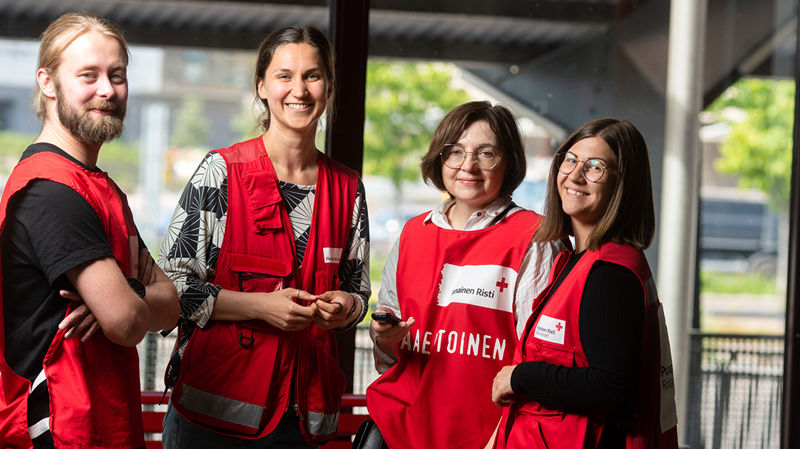
Photo: Frida Steiner / Suomen Punainen Risti
Here you will find information on the tools that Oma offers to the branch volunteer activity coordinators.
Only those individuals who have been specifically granted the user right level of Oma user or Oma administrator can access the branch administration view in Oma.
- You can access the branch administration view from the top right corner of your user profile's front page.
- In the administration view, you can find volunteers who have created a user profile in the branch, the branch’s groups and messages sent by the branch.
- In this view, you can also manage information about volunteers and groups, and send messages to all users who have created a user profile in the branch's operating area, as well as to users who have been designated as group leaders. You can also filter volunteers in your branch according to interests and skills, and send messages to the filtered target groups.
- In the administration view, you can edit the branch description and specify to whom and how often notifications about your branch's new volunteers are sent.
- The administration view consists of four tabs: Volunteers, Groups, Messages and Rights. You can read more about the different tabs below.
Volunteers
- On the New Volunteers in My Branch list, you can see volunteers who have created a user profile in the branch's activity area and who have not yet been contacted.
- Volunteer information can be viewed and edited by clicking on the volunteer's name.
- The Volunteers tab also allows you to filter volunteers in your branch according to skills and interests.
Groups
- In the administration view, you can create and edit groups in your branch, add volunteers to groups and assign users as group leaders.
- Activity groups are always created under the branch's administration view. Activity groups can only be created by people who have the branch's Oma administrator's user level. Instructions for creating an activity group, assigning a group leader and adding and removing group members can be found here.
- A volunteer designated as a group leader receives the right to add members to the group and remove them.
Messages
- In Oma, you can send messages to all users in the branch and all users who have been assigned as group leaders of the branch's groups
- After filtering, you can send messages to selected target groups.
Rights
- This tab allows you to manage the user levels of the designated volunteers in your branch. A designated volunteer with an administrator user level can add the user level of Oma user to other designated volunteers or remove it. A designated volunteer with an Oma user level can see a summary of the individuals within the branch who have been granted user levels.
Volunteers who have access to the branch's administration view will see the full volunteer cards of all volunteers in their branch. All data must always be treated confidentially and appropriately.