Groups

This page contains information about various groups in Oma and their differences. You can also find instructions on how to create a group, add members and join a group, among other things.
Oma has groups for volunteers, which they can join to receive information about activities and send messages to each other. A logged-in user can browse groups through the branch homepage or via the Search Groups button. There are two types of groups: activity groups and open groups.
Activity groups
- Activity groups are groups for volunteers who are involved in volunteering activities in your area, where information is shared and discussions about the activities take place.
- Activity groups are always closed groups, and you must apply for membership. A group leader can invite volunteers from their branch to join a group. The recipient must accept the invitation.
- As a member of an activity group, you are able to create Red Cross activity announcements in Oma.
- By joining an activity group, the status of your Oma profile automatically changes to Active in activities.
- Activity groups can only be created through the branch administration. However, the group leader does not need to have access to the branch administration.
- A group can be marked as nationwide or internal within a branch. If a group is internal within a branch, only volunteers from that branch are able to find it.
- You can also create regional activity groups. A regional activity group can have group leaders from different branches. A regional activity group is always created by a district; if necessary, contact your district's Oma administrator in order to create a regional activity group.
Open groups
- Open groups are groups where volunteers who are interested in the same topic can join together, for example to plan a Red Cross campaign or event.
- The group can share information and have discussions.
- Open groups can be joined by anyone, and any logged-in users can create an open group through the Oma front page after logging in.
A group can be made available nationwide, making it visible in the group listing to all Oma users, and anyone can join regardless of their activity area.
A branch-internal group, on the other hand, is only visible to users who have selected that branch as their activity area.
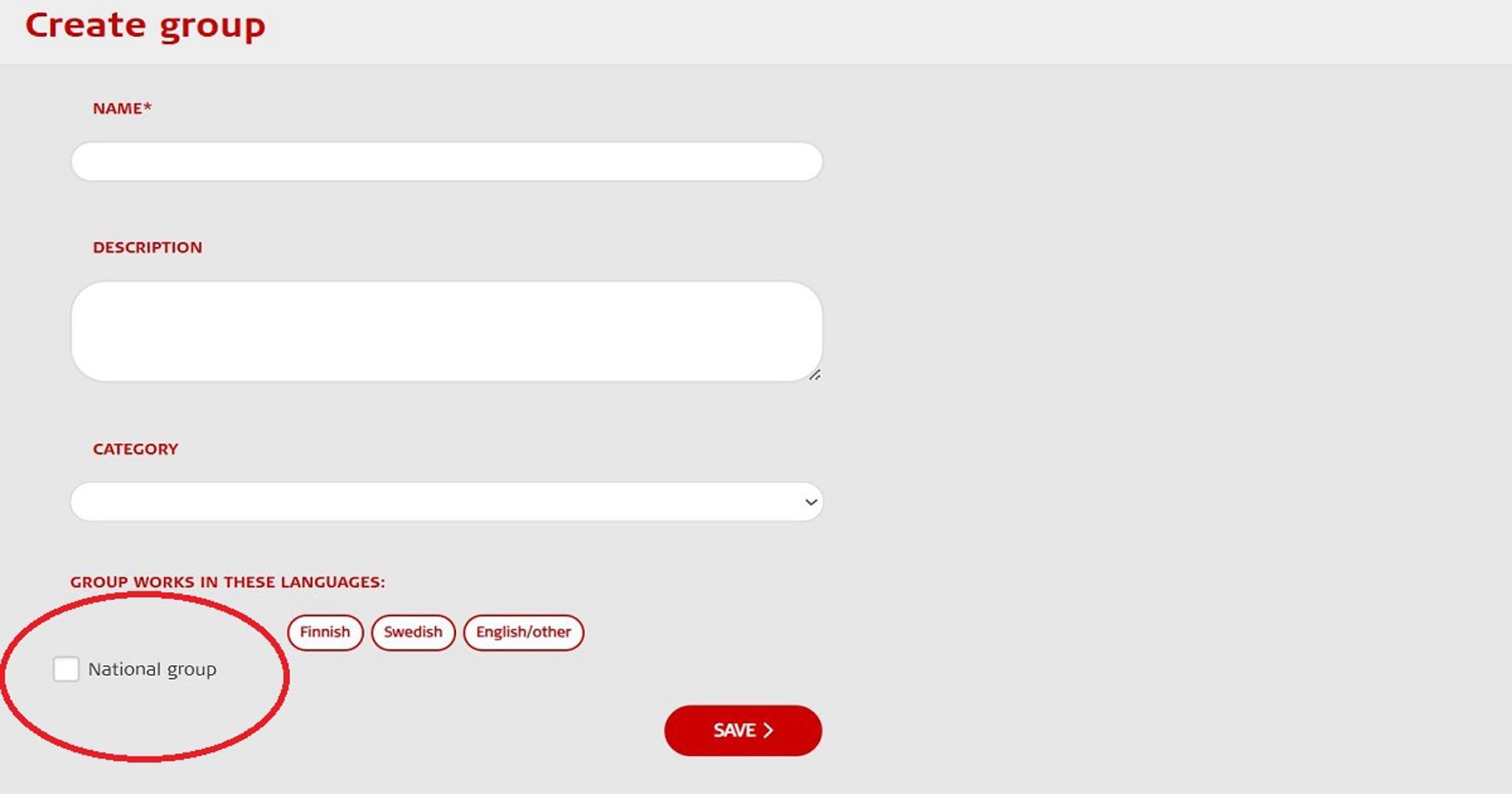
Create a national group by ticking the box shown in the image. If you leave this field blank, the group will be created as a branch-internal group.
Creating an activity group requires the Oma administrator user level, as activity groups are created in the branch’s administration view.
Create an activity group by selecting the Create Group button under the Activity Groups subheading on the Groups tab in the administration view:
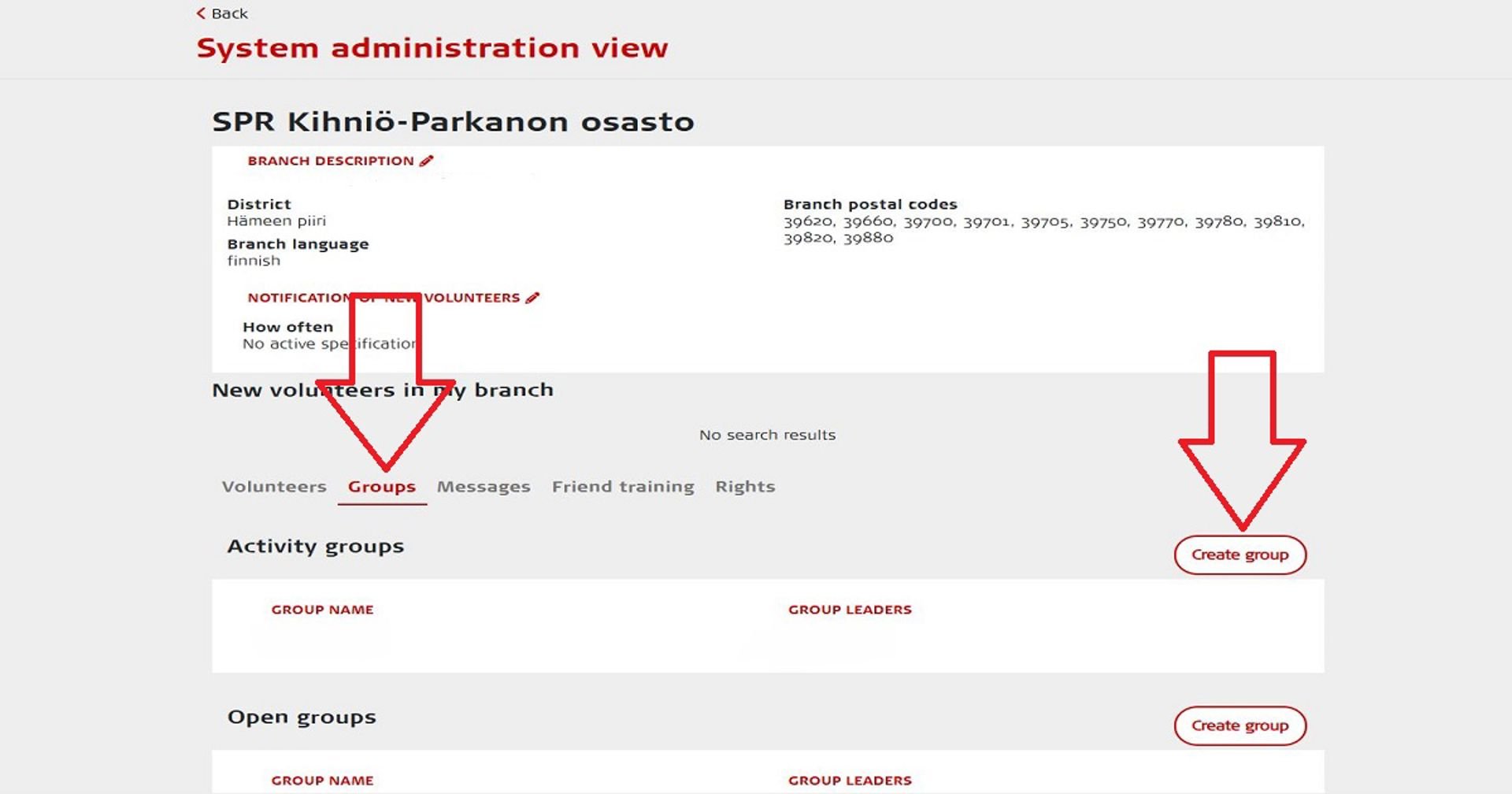
1. Provide the group with a name and a description. Please note the following:
- The name of the activity group must mention its branch or locality so that it stands out, for example "First Aid Group of the Oulu Branch".
- The activity group description should include a few sentences about the group's activities, who the group is for and the contact details of the group leader.
2. Remember to choose the right category for the group according to the type of activity.
3. Specify whether the group is nationwide or a branch-internal one.
4. Specify the main language of the group.
5. To create the group, click Save.
Any logged-in user can create an open group after logging in. To create an open group, go to My groups > Create an Open Group on the front page of your user profile:
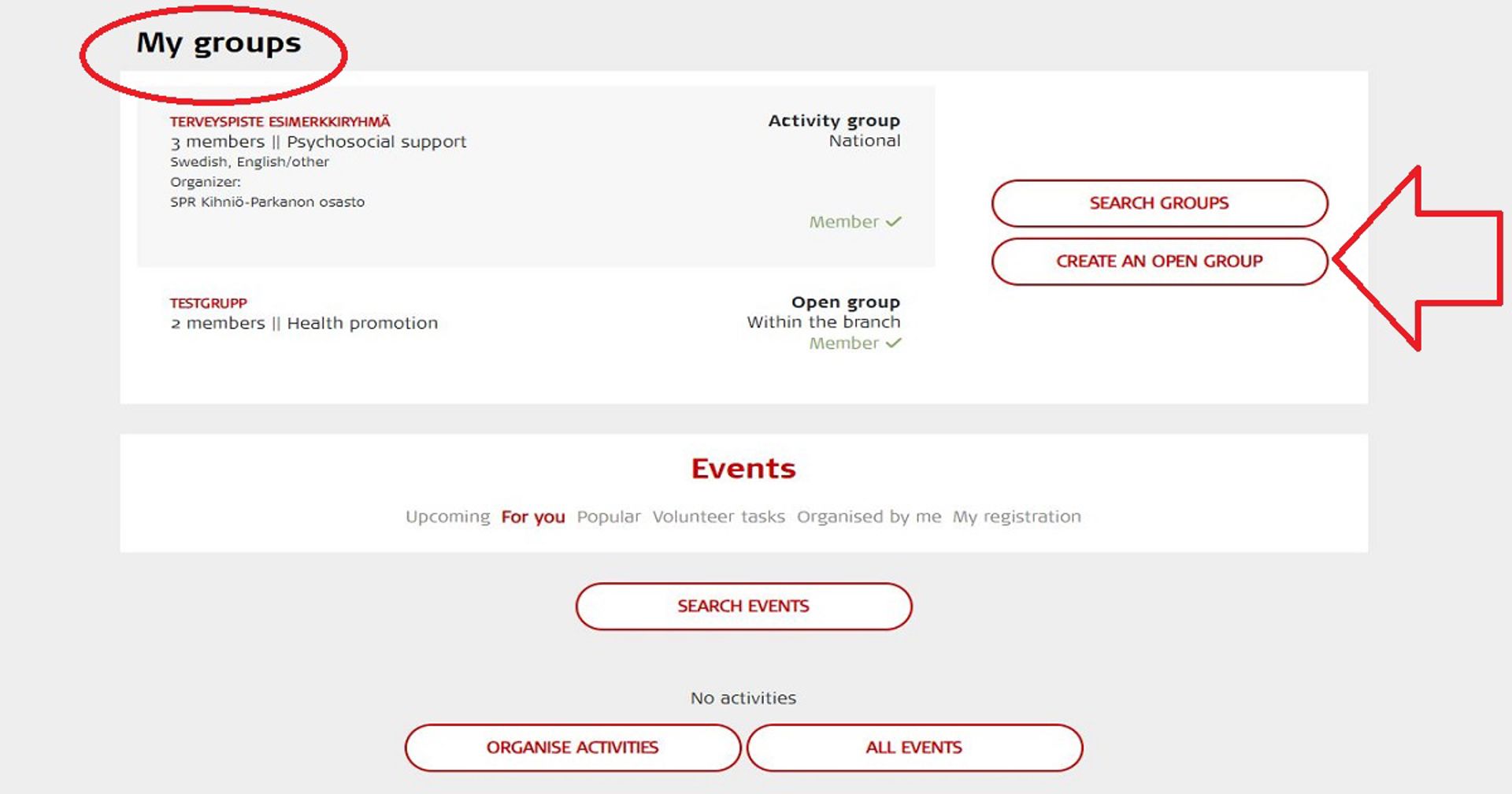
- You should give the group a name that describes it as accurately as possible and includes its location, if possible, so that it stands out. The group must comply with the values and principles of the Red Cross.
- Write a description of the group and its activities.
- Remember to choose the right category for the group according to the type of activity.
- Specify the main language of the group.
- Specify whether the group is nationwide or a branch-internal one.
- To create a group, click Save.
If you want to create a group that crosses branch or district boundaries, please contact your district's Oma administrator. The district's administrator creates the activity group under the district. The Oma administrator invites as group leaders those volunteers from different branches who are intended to lead the group. Note! The group leaders must accept the invitation. The group leaders can manage the group as equals. However, the group leaders can only invite new volunteers to the group from their own branch.
A group leader can manage group members through the group. You can accept membership requests and invite new members by opening the relevant group and clicking on the Add Volunteer button.
The Oma administrators and users can also manage the memberships of the groups on the Groups tab in the administration view by opening the relevant group from there.
Inviting a volunteer to a group
- A volunteer can be invited to an activity group by searching for the user by name or by selecting them from the list (note that you cannot invite someone to an open group; if you want a volunteer to join your open group, tell them the name they can use to search for the group in Oma).
- You can only invite volunteers from your own branch to a group.
- Once you have selected the person or persons you want, press Save.
- Once saved, the volunteer will receive a joining invitation in Oma and via email. Next to the volunteer's name, it will say Waiting for Approval until they go and accept the invitation. You can also cancel the invitation by clicking Delete.
Accepting a volunteer who has applied for group membership
- The group leader will receive a notification in Oma when a volunteer sends a request to join a group.
- Users applying to join an activity group are accepted as members by clicking the Accept button.
- After acceptance, the text Volunteer in Group appears in green next to the volunteer. You can also withdraw your acceptance at this stage.
Only Oma administrators and users can assign a user as a group leader. Managing the group is easiest through the branch’s administration view (Administration > Groups > select group).
Assigning a group leader for an activity group
An activity group is always created through the administration view. The user creating an activity group can provide other users with group leader rights. If new group leaders have access to the administration view, they can grant group leader rights through the branch’s administration view or from the My Groups section on the front page.
Assigning a group leader for an open group
The user creating an open group can provide other users with group leader rights. Anyone with group leader rights can assign other users as group leaders.
A group leader is marked with a green star. You can grant group leader rights to a group member through the Mark as Group Leader button. You can also remove a group leader's group leader right by clicking on the Remove Administrator Rights button.
The groups you are a member of can be found on the front page under My Groups after logging in.
In the Groups section, you can search for open groups and activity groups by using the Search Groups search function. The search will display the groups under your branch and the nationwide groups.
Activity groups
Next to the group name is a Apply to Become a Member button, which, when clicked, sends your membership request to the activity group leader. You will be notified of your acceptance to the activity group in Oma and via email.
A group leader can also invite you to join a group. You will receive an invitation both in Oma and via email, from which you can accept the invitation. If you cannot find the message in your email, please check your spam folder.
Open groups
Anyone can join an open group without a membership request. You can also create an open group of your choice in Oma. Any group you create must comply with the values and principles of the Red Cross.
- Group members can send messages within the group. Messages sent in a group will be visible to all group members.
- When you send a message to a group, you can choose whether other members receive a notification of it both in Oma and via email. If the message sender selects the Also send by email option, the message is sent to all group members, except for those who have specifically disabled Oma emails in their settings.
- You can reply to messages sent by other members of the group. The replies are also displayed to the whole group.
A branch's Oma administrators and users can delete a group via the administration view, making it inactive. In this case, the group appears in grey in the administration view, but it is not shown to regular users. A district administrator can delete a group permanently at a branch's request.