Events

On this page, you can find information about Red Cross events in Oma and instructions on how to sign up for an activity that interests you. You can also find instructions on how to create events and volunteering opportunities.
You can register for events by first clicking on the icon of the event you are interested in. This will also allow you to see more information about the event.
Next, select Sign Up.
After this, you can choose a suitable volunteering task at the event from a range of roles. By selecting Sign Up, your information will be forwarded to the event organiser.
The events you have registered for can be found on the front page of your user profile under My Registrations. You can cancel a registration on the event's page.

A public event is visible to everyone (both to logged-in and other users) on the Oma front page. If you register for an event through Oma's front page, two options will be displayed to you: Sign Up Without Logging In or Log in to Oma Profile.
The Sign Up Without Logging In option allows you to register for an event without an Oma user profile. Clicking on the option will take you to a form asking for your contact details and (depending on the event) the role in which you will join and/or the time at which you want to participate.
After registration, you will receive an email confirmation of the registration and a link to cancel your registration, if necessary.
If you register without a user profile, you will receive a link to your email after registration, which you can use to cancel your registration, if necessary.
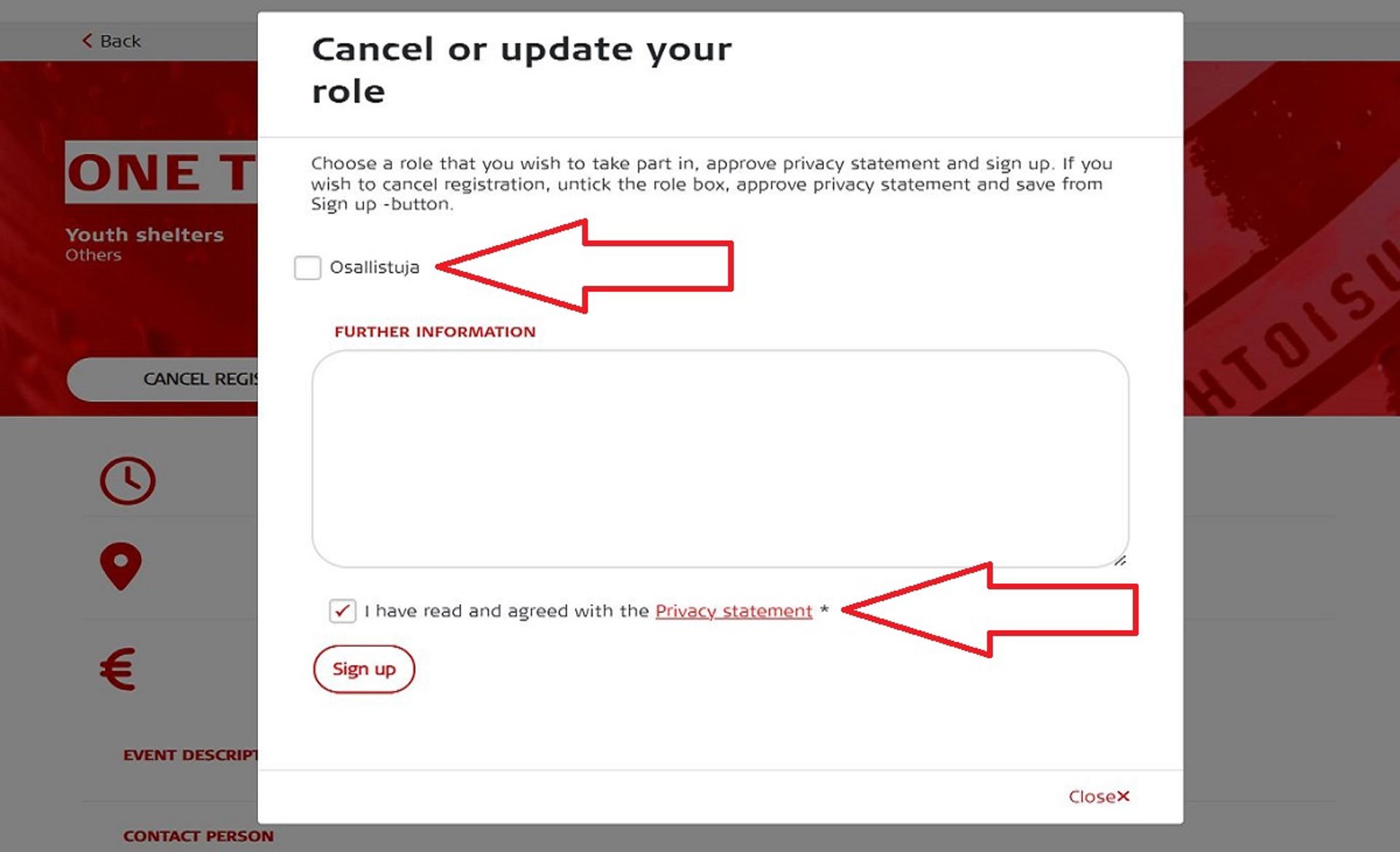
A logged-in user can see all their registrations on the front page of their user profile under My Registrations. You can cancel your registration on the event's page:
- Click the Cancel Registration button on the event page.
- This will open a new window. Uncheck the Osallistuja/Participant (or other volunteer role) box and tick the privacy statement box.
- Finally, click on Sign Up. Despite the wording, your registration is now cancelled.
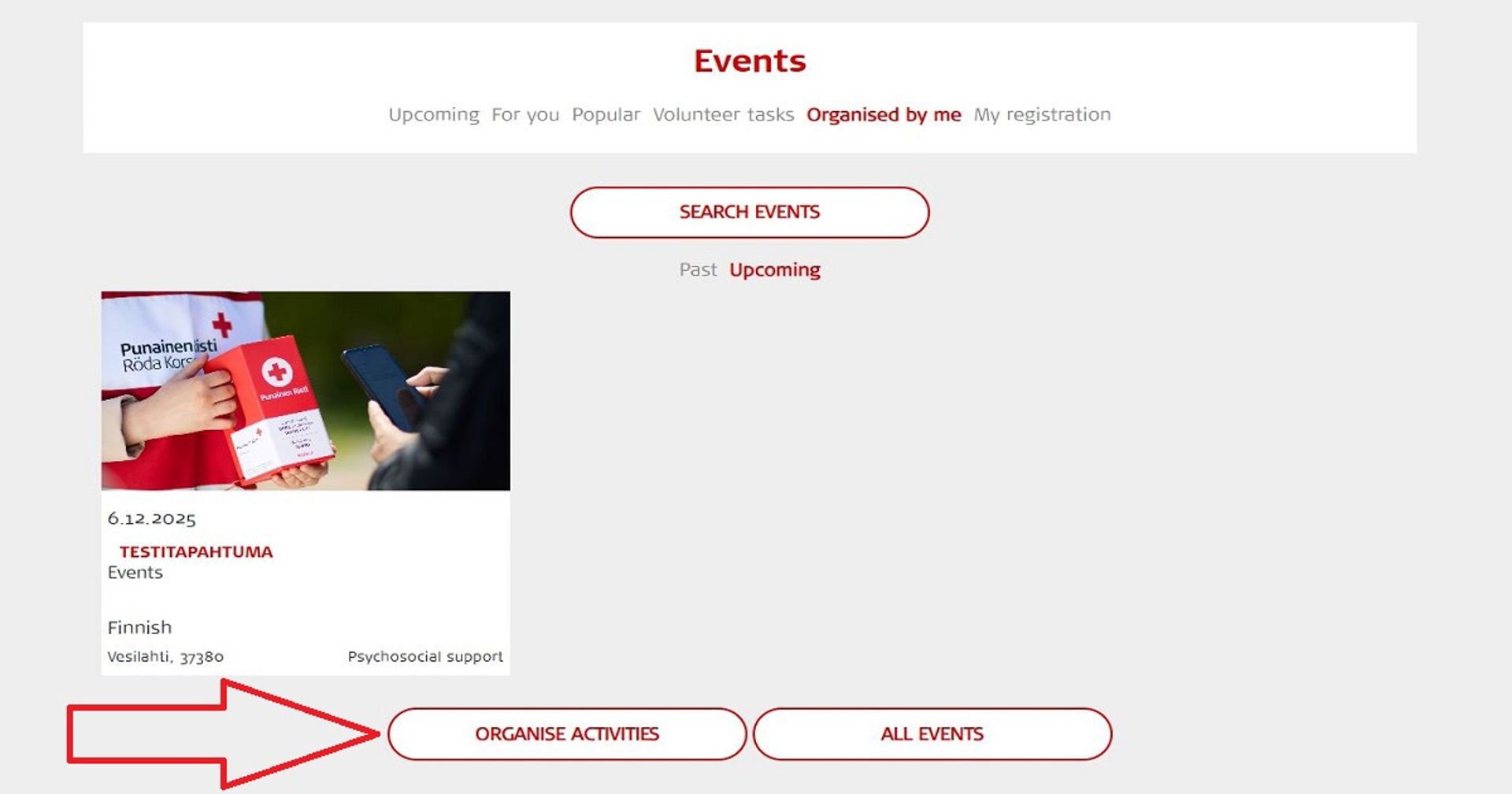
You can create events if you are a member of at least one Oma activity group.
- To start creating an event, click the Organise Activities button at the bottom of the user profile's front page. To see the button, you must be a member of at least one Oma activity group.
- After this, an announcement template will open for you to enter the event details.
- You should name the event in a way that its location stands out from others (for example, "Hunger Day Collection in Jyväskylä" or "First Aid Group Practice Evening of the Oulu Branch").
- By ticking the The Event Is Visible to All Oma Users box, the event you created will also be visible on Oma's front page to users who are not logged in. This allows users without a profile to register for the event as well. If left unchecked, the event will only be visible to logged-in users.
- Enter the address details as accurately as possible. The postcode is used to recommend events near the user and the address is used to place the event on the map.
- If participation in an activity is free of charge, you should indicate this in the Subject to a Fee field (e.g. "free of charge" or "free").
- In the Event Description field, you can provide more details about your event. Any links should be entered as full addresses (e.g. https://punainenristi.fi/oma).
- To publish an event, at least one participant role must be specified for it. The default participant role for events is "participant" (osallistuja). Participant roles are specified in the Event participants and Roles section at the end of the registration form by clicking the Add Role button. The roles can be volunteer tasks or the event's number of participants, for example. For each role, you can indicate the number of participants separately.
- By clicking on the pencil icon on the left, you can edit the default participant role or add the number of participants to it. The Add Role button allows you to add different participant roles to the event.
The information about registered participants is visible to the user who created the event on the event page. You can also share admin rights for an event with another Oma user. See instructions on how to share admin rights here.
Once published, an event can be edited by the user who created it or by a user who has been granted administrative rights. Once published, the event can easily be shared on social media (e.g. Facebook, Twitter) by using the ready-made buttons at the bottom of the event page.
You can set the duration of an event to a maximum of 21 days. If you want to create an event that lasts longer than this, consider the following options:
1. Is it actually a volunteer activity?
- Volunteer activities have no time limits. They are particularly useful for recruiting new volunteers and introducing activities.
- Events (e.g. courses, trainings and group evenings), on the other hand, have a clear date and duration.
2. Could the event be offered for a limited period?
- An event can be set to be visible for a specific period of time.
- When the period ends, a new date can be set for the event manually, allowing it to become visible to users again.
Many activities (e.g. homework help, clubs) meet regularly on a weekly, fortnightly or monthly basis. You can easily create meetings for eg. the entire spring or autumn in one go by using the recurring event function. By selecting the event to occur more than once, the system creates the desired number of events in one go.
Create a recurring event in the same way as a one-off event, taking into account the following:
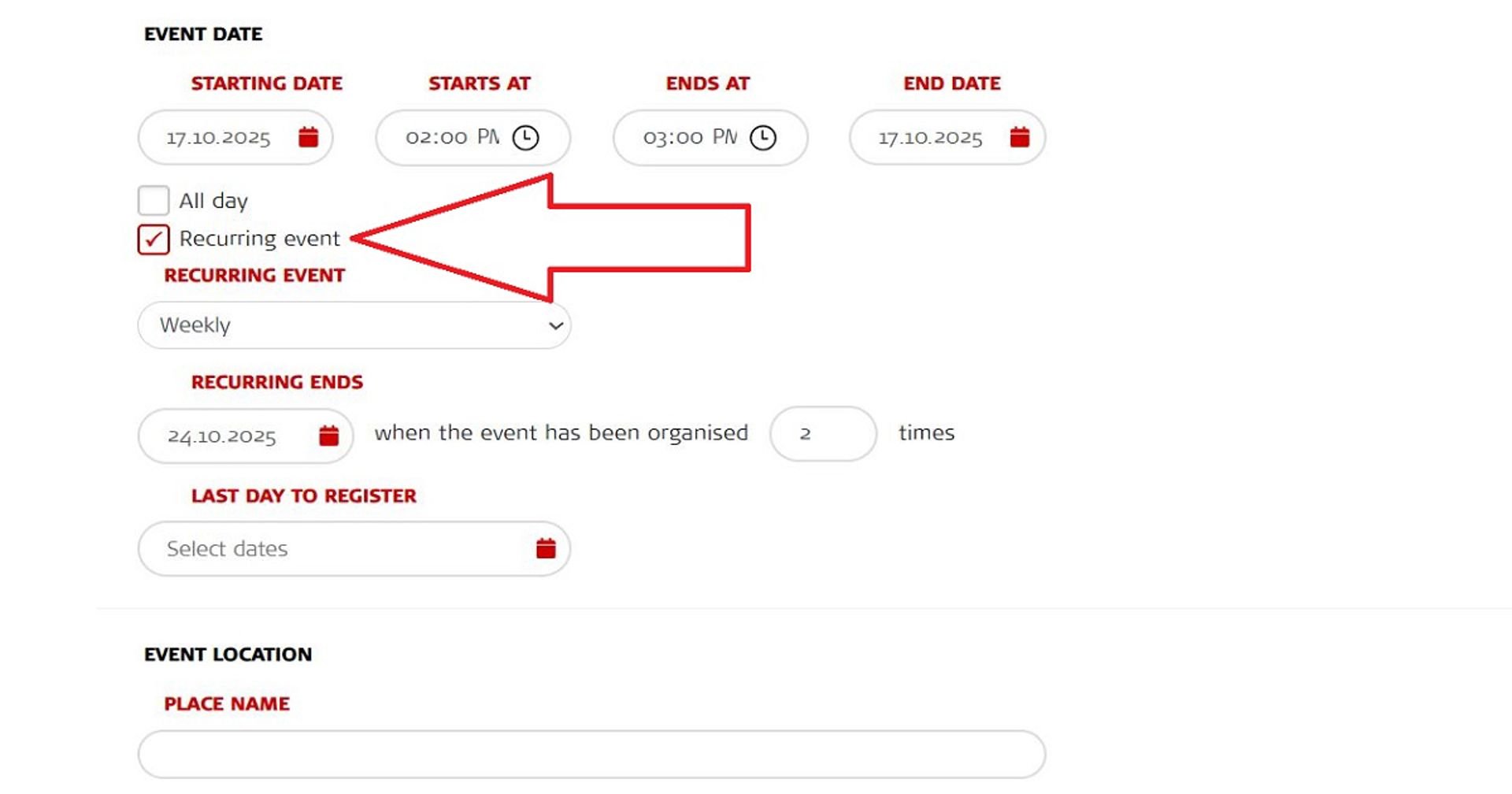
- For a recurring event, set the date and time of the first meeting as the start and end dates and times of the event.
- Select the Recurring Event option. In the Recurring Event section, you can choose for the event to recur weekly, every other week or monthly. In the Recurring Ends section, select the date of the last meeting or specify how many times the event will repeat.
Deleting a recurring event
A recurring event can only be deleted in its entirety – its individual meetings cannot be deleted. However, you can edit individual events separately.
Volunteer tasks allow a branch to recruit volunteers for a specific activity. They can also be used to collect the registrations of those who are interested in a specific task in one place. A volunteer task is a recruitment advertisement that can be used to find volunteer friends, first aid team members, etc. However, group meetings, training sessions and such must still be created as events. If it is an EVENT that is tied to a specific time, use the regular event registration tool.
It is important that the volunteer task description is well formulated – explain what the task is, what support is available (e.g. training) and how much time it will take.
When you create a volunteer task, remember to also follow up on those who have signed up for the task and stay in contact with them. You will receive an email notification of new volunteer registrations.
Volunteer tasks can be found under Volunteer Tasks when you log in. Volunteer tasks are also visible to visitors in the event search. You can filter them by selecting Volunteer Tasks in the Type section.
You can create a volunteer task via the Organise Activities button (at the bottom of the front page), just like a normal event announcement. You need to be a member of an activity group to organise an activity. Under the organiser field, you can select whether it is an event or a volunteer task. Remember to also choose the type of activity! The default activity type is "volunteer task", and it is not selected separately.
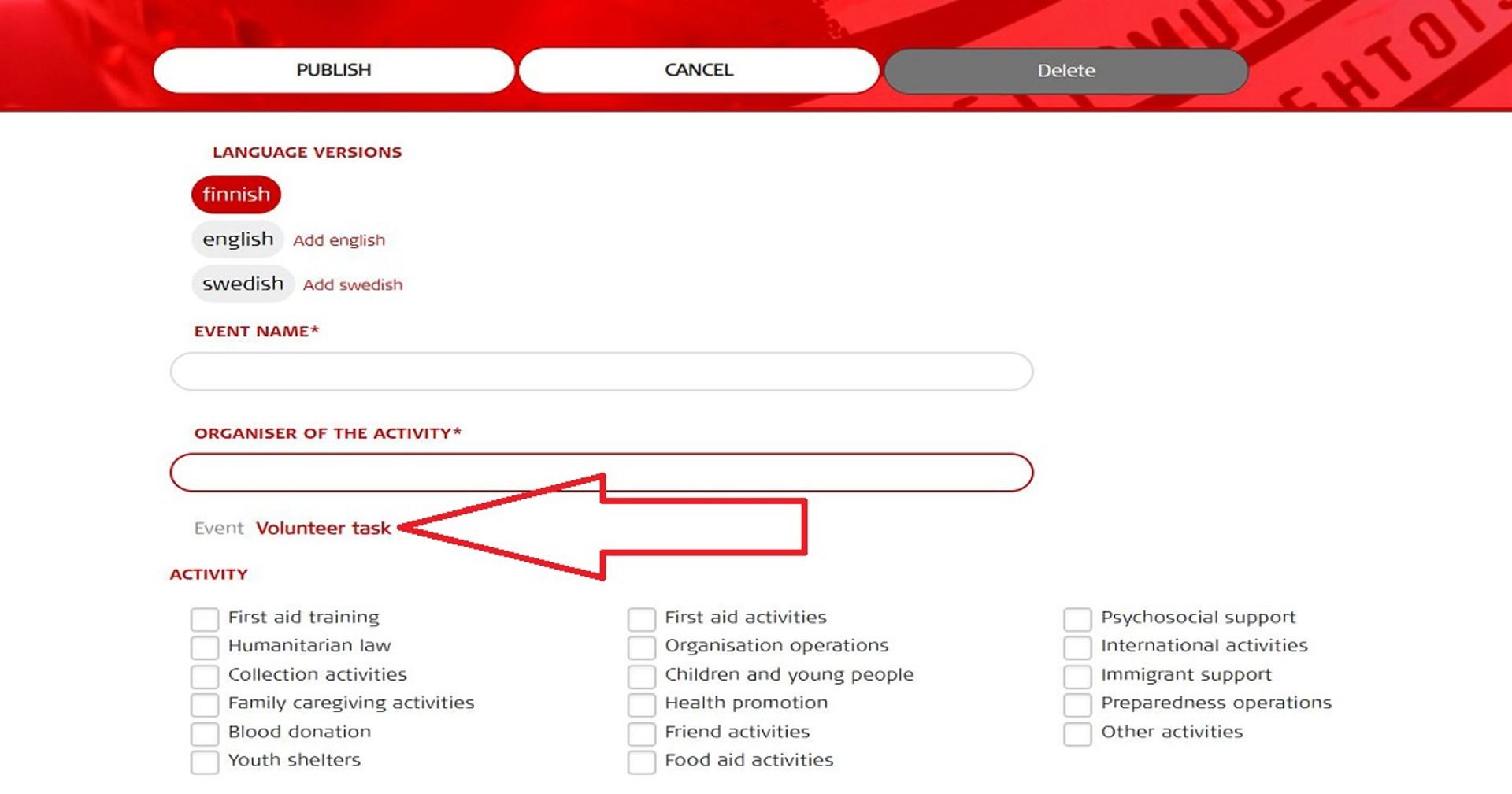
The Due Date is the day the announcement will no longer be visible. You can create a volunteer task for the spring or autumn season of your branch, for example. Volunteer tasks are displayed to users in chronological order, with the task with the closest deadline displayed first.
The All Day/Recurring Event options do not need to be used for a volunteer task.
An unlimited number of participants can automatically register for a task. If you want to edit a role in the Event Participants and Roles section to better match the task description or limit the number of registrants, you can do so by clicking the red pencil. You can also create multiple roles by clicking the Add Role button. Make the changes and confirm by clicking the small red checkmark.
Adding an image
The simplest way is to use the ready-made images in Oma's image library for event notifications. When using images from the image library, keep in mind that they may not always scale perfectly; some images work better as preview images, others as background images. When uploading your own images, please note that the part of the image that is displayed depends on the browser you are using.
The height of the background image in an event announcement is cropped from the centre of the image so that it is always 415 pixels high. Horizontally, the image is centred and the portion that fits within the browser window is visible. For example, a suitable image width is 1920 pixels, allowing the image to also work on wider screens.
Preview image
The preview image is displayed in the event list on Oma's front page.
Event preview images are displayed in browsers on computers at a size of 350 x 180 pixels. On mobile devices, the width of the preview image varies and can be up to 510 x 180 pixels at its widest. Larger images are automatically resized so that as much of the image as possible is visible. The width of the image determines how much of the image can be displayed vertically. The image size must be at least 350 x 180 pixels.
The image's width should ideally be greater than its height, but a square also works (on event overview pages, the event image is displayed at 100 x 100 pixels, so a small portion is cropped from the left and right edges). The file size may be up to 500 KB.
Background image
The background image is the image behind the event title when an event is clicked open – this image also appears when sharing on Facebook.
A good image size is, for example, 1920 x 1267 pixels. The image is displayed at its full width – the larger, the better (how wide it appears depends on the user’s device screen). However, the image width should be a maximum of 3000 pixels (loading slows down if the image is too large), while the height should be at least 300 pixels.
The image is cropped from the top and bottom so that the centre is visible – the subject of the image should, therefore, be centred vertically. The file size may be up to 500 KB.
You can share the admin rights of an event or volunteer task you create with one or more Oma users.
This grants another user the right to edit or delete announcement information. They will also see the list of registered participants. However, they cannot pass on admin rights; only the original creator of the announcement can grant admin rights. Always consider data protection when sharing – grant admin rights only to those who genuinely need to edit the event or view the participant list.
You can share the admin rights of either a single announcement or all the events and volunteer tasks you have created at the same time (including both past and future ones). The events and tasks for which you have been granted admin rights can be found on the front page under Events > Organised by Me.
Sharing admin rights for a single event or volunteer task
You can share the admin rights when you create an announcement or edit the rights afterwards. Add the relevant person's email address and press Add. The user must have a profile linked to that email address in Oma.
You can add the email addresses of multiple people. Consider data protection – only share admin rights with people who need to see the list of participants. The red checkmark also allows you to remove admin rights from a user. Finally, publish the announcement or save the changes.
The user who is granted admin rights will receive an email notification.
Sharing admin rights for all the events and volunteer tasks you have created
You can share admin rights for all the event and volunteer task announcements you have created in one go. In that case, the sharing will apply to both the announcements you have previously created and all future ones. However, you can remove admin rights from another user at any time. This function is useful when a designated volunteer leaves their role, for example. You can share admin rights for all the announcements you have created by editing your profile.
The option to share admin rights can be found at the bottom of the profile information. Start the sharing by clicking on the red pencil icon.
You can add one or more user email addresses in the same way. Click on the red cross to remove rights. Remember to save! The user will receive an email notification of the shared admin rights.